
Brian Long Consultancy & Training Services
Ltd.
January 2012



This article looks at how get Google's map control working in an Android application, specifically using the Oxygene for Java development tool from RemObjects (a tool seen by many as a Delphi compiler for Android). The reason behind this article is that the map control is not part of the standard Android library - it's in an add-on library. Consequently there are various steps required to make use of the library, and additional steps that Google require of you before you can successfully get the map control working in your app. We'll run through all these and see what features the map library offers us.
Running through the required list of steps you may conclude that it's a convoluted process adding an interactive map onto an activity in your Android project, and it's true that the setup is a little tedious. However once you have a template application that uses the map control, things are rather more streamlined after that. Hopefully the detail in this article will make the process clear enough to become relatively straightforward.
The accompanying source project is available through this download link.
As intimated in the introduction the Google map control is
not part of the Android Open Source Project (AOSP). Instead Google Maps is an external library, the com.google.android.maps
package, which is available through the Google APIs add-on for the Android SDK. To use the MapView control from the Google Maps library we need to follow the steps
below, each of which is explained in plenty of detail to explain what's
going on.
Steps:
Let's now take a look at what each of these steps entails. Take a deep breath - we're going in!
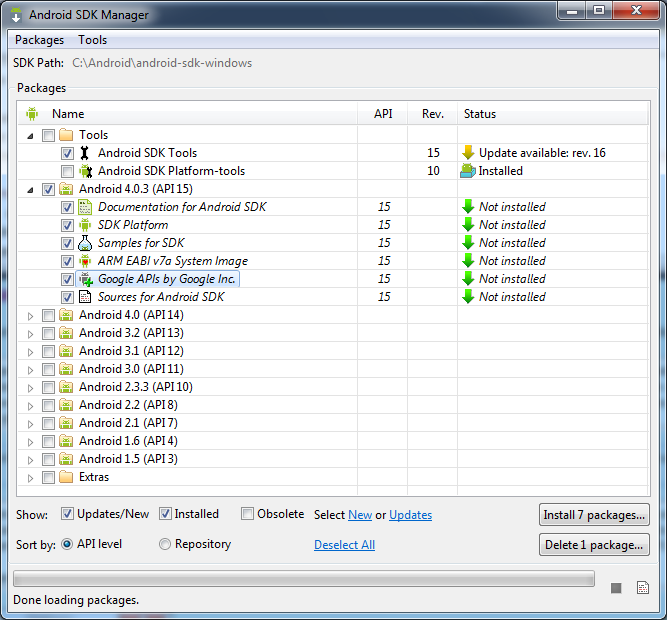
Whilst the Maps external library is not part of the Android project itself, the Android SDK Manager has been set up to locate and download it, if required.
Note: the open source Android project itself does not include the Google Maps library, however it is expected that any physical Android device will have the Google Maps library installed. So installing the Maps external library is really for the benefit of the compilation cycle - it allows Oxygene for Java to compile against all the classes defined in the Maps library and successfully resolve references to the symbols from it. When Oxygene for Java links our application we will not require it to include the Maps library in our Android package - that could yield deployment errors thanks to us trying to install a duplicate class.
Assuming that you added the Android SDK tools directory onto your Windows PATH then
you can invoke the Android SDK Manager by running the android.bat batch file from
the Windows Run... dialog (ÿ+R).
For any Android API levels you wish to install you must be sure to check the Google
APIs by Google Inc. entry - this includes the Maps external library.
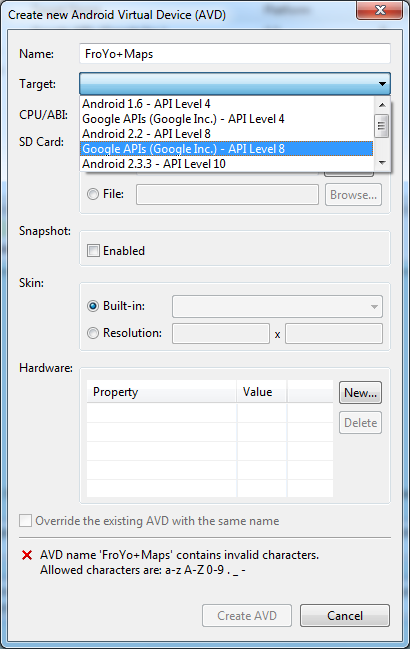
Note: while physical Android devices will have the Google Maps
library installed, any emulators (Android Virtual Devices or AVDs) that you set
up will only include the Maps library if you specified Google APIs as a target when
creating the AVD. For example in this screenshot you can see the Target lists
out the regular versions of the Android APIs that are installed as well as versions
that include the Google APIs add-on. The item selected will create a FroYo (Android
2.2, API level 8) AVD that has the Google Maps library included.
You get to the Android AVD Manager by running android avd from the
Windows Run... dialog (ÿ+R)
To work with the MapView control we need to add a reference to the maps library
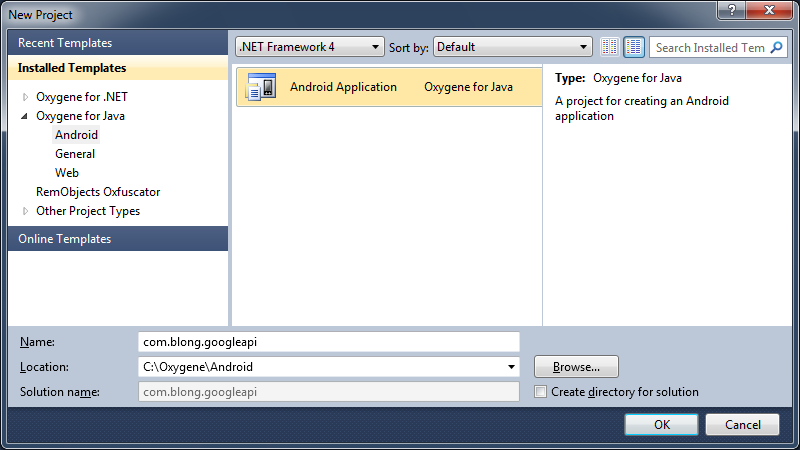
into our project. So starting at the beginning we need a new Android project:
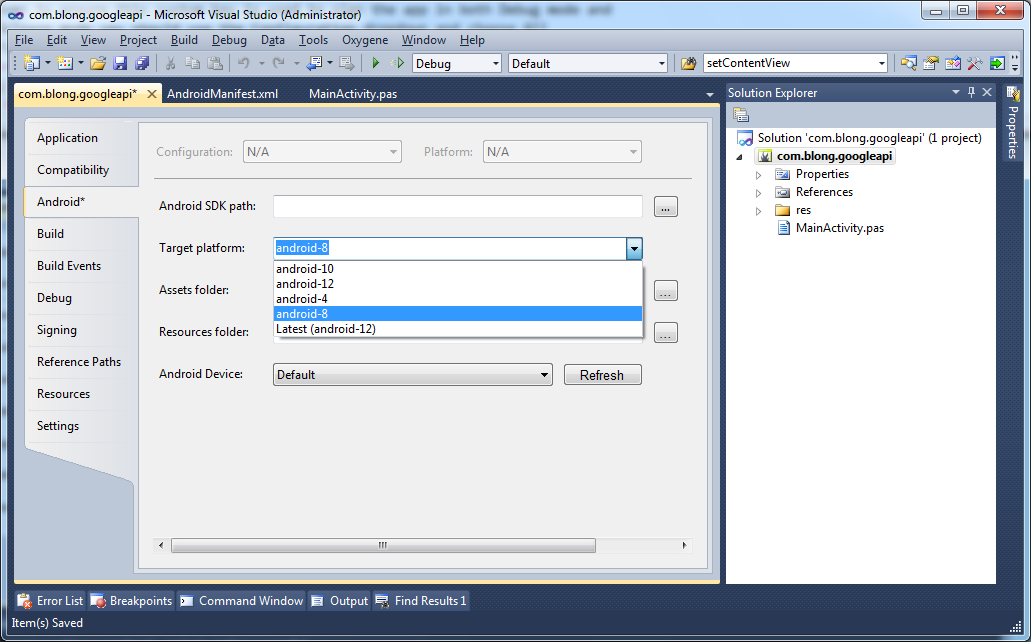
Then we need to choose which Android version we will be compiling against. This is selected in the project options on the Android page - choose whichever API level you want, being careful to pick one that has the Google APIs add-on downloaded for it. Here I've chosen Android 2.2, or API level 8.
Now we must add a reference to the maps library. This can be done using Project,
Add Reference... from the main menu or by right-clicking the References node in
the Solution Explorer and choosing Add Reference... In the dialog that pops up
brows to your Android SDK directory, then into add-ons, then into the Google
APIs directory with the suffix that matches your chosen Android API level. Since
I chose API level 8 I'll be going into the addon_google_apis_google_inc_8
directory. Under here browse into the libs directory and select maps.jar, press
Add then press OK.
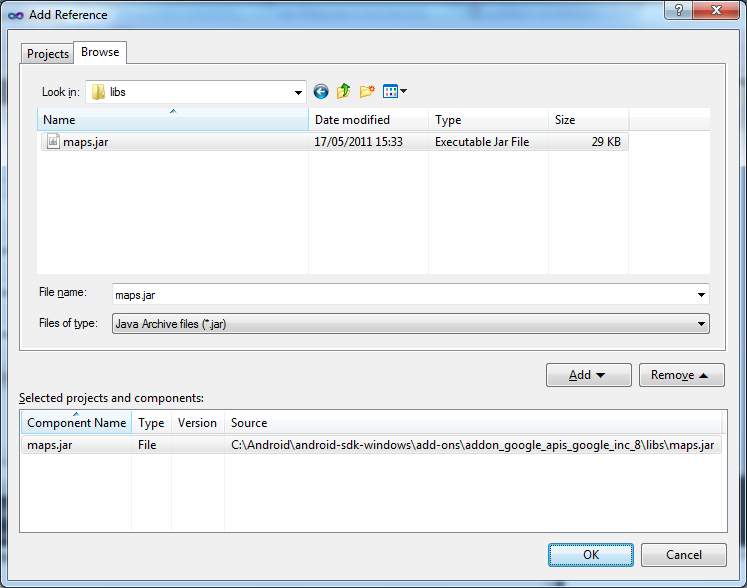
Now the Maps external library reference should have been added to the project.
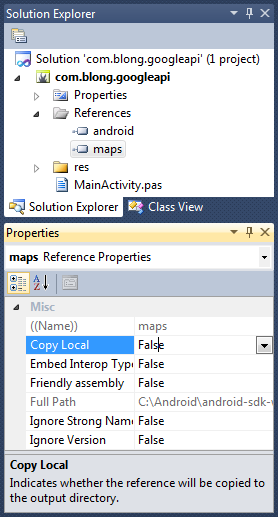
Note: the Copy Local option defaults to False and for the
Google Maps library reference (and also the main android library reference)
it should be left as False. Setting Copy Local to True would cause the compiler to
copy the library into the project directory tree and include it in the Android
application package, which we do not want to happen. Remember that the Google
Maps library is already on physical Android devices and emulators that have been
set up appropriately. It would cause problems to link the library into your
application package and deploy what would be a duplicate library.
On the other hand, this setting is very important to remember when dealing with
any other miscellaneous Android libraries that you want to use in your
application. When linking to some custom third party library you will need to
set Copy local to True to ensure the library is included in
the Android application package so that when deployed the library code is
present and can execute.
In order to have Android load the shared maps library from the device when our
application starts (thereby allowing us to access it at runtime) we must specify
that we are using it in the Android manifest file. The manifest file is in the
project as Properties\AndroidManifest.xml and we need to add a
uses-library
element within the application element, specifiying the package name of the
shared library like this (see line 9):
By taking this step, the Android package manager will check that the specified library is present on the device when installing the application and refuse to install if the library is absent. Additionally the Android Market won't display published applications to a user that doesn't have the library installed.
The MapView control (or widget) is designed to use the Google Maps API and display
a map by downloading map tiles from the Google map servers and displaying them as
appropriate. This, of course, entails making use of an Internet connection. Because
we will need to use the Internet connection we need to advertise this fact clearly
by adding a suitable permission requirement into the manifest file. If the application
ended up on the Android Market then a user will be informed before downloading and
installing the app that it requires permission to use the Internet and therefore
the user is aware that, for example, they might need to ensure they had a suitable
data plan in place, or just use the application when connected to a Wi-Fi network.
There are many permissions defined for various aspects of Android application
development and they are requested by adding uses-permission elements to the Android manifest
in the manifest element. We request Internet permission by changing our manifest
file like this (see line 18):
To install any Android application it must be signed with a certificate related to a key in a keystore. If you were unaware that your Android applications had been signed that would be because the default behaviour of Oxygene for Java is to have the Android SDK tools automatically sign each application with the Android debug key.
The first time you use the Android SDK tool chain by building an application an
Android debug key is created in a keystore in %USERPROFILE%\.android\debug.keystore.
When apkbuilder is invoked as part of the Android build cycle it signs the app using
the key in this debug keystore. It does this because the Signing page in the project
options defaults to have the Android Sign option checked.
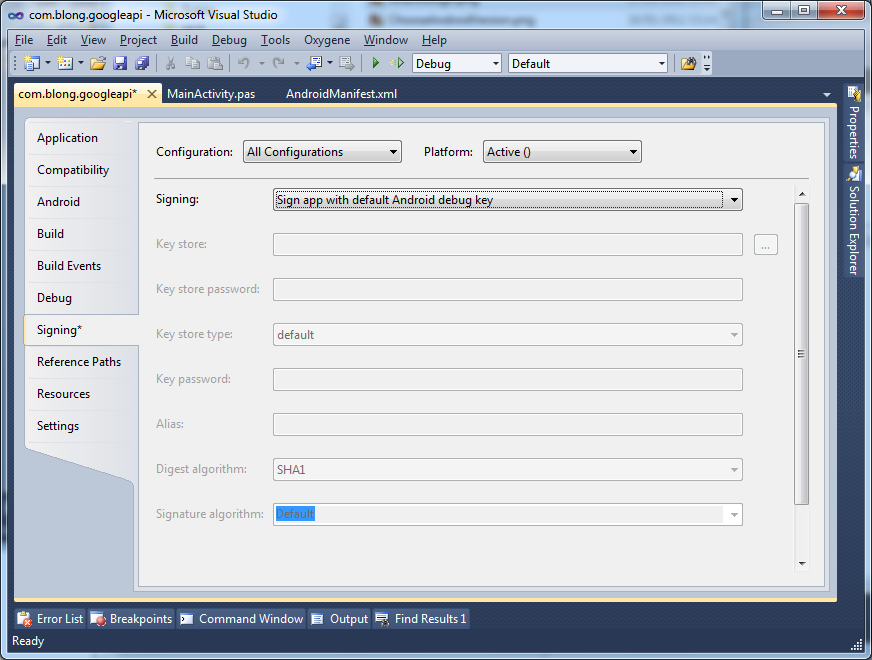
If you unchecked Android Sign checkbox then apkbuilder would be passed
a -u switch telling it not to sign the package with the debug keystore,
leaving you with an unsigned application that could not be installed.
Why all this information about certificates in keystores? Well,
some time very soon we will need to get some intimate details from the keystore
used to sign our app, give them to Google and get another piece of information back
(called a Map API key). That Map API key will need to be compiled into our app for
the MapView control to operate correctly at runtime.
We could just use the Android debug keystore to generate this MAP API key, but some forward thinking might suggest this is not such a good idea.
If the goal is to build an app that you might at some point want to publish on the Android Market you should be aware that such an app must be signed with a custom key - the Android debug key is not sufficient. An app signed with the Android debug key will not be allowed onto the Android Market.
So, it makes sense to take the step of creating yourself a self-signed certificate/key/keystore up front for all your published apps*, so that when you get the Google Map API key based on it, that Map API key will always be usable in your app. Otherwise at some later point when you decide to switch from the default Android debug keystore to a custom keystore, you'll need to get a new Map API key based on the custom keystore and locate and replace all occurrences of the old Map API key with the new one.
*When you publish apps on the Android Market it's your key that identifies you as the publisher. If you use the same key for all your apps, then they will all be associated with the same developer - you. So when you create a custom key for a published app it's really important to keep hold of it so you can use it for future apps and updates to existing apps.
Ok, so assuming you agree that making a new keystore containing a key and self-signed
certificate is a good idea, we'll look at how to do so. However if you want to use
the Android debug key for the time being then that's also just fine. It saves you
a step whilst testing with the MapView control. You simply need to
reference the Android debug keystore instead of the custom one when generating a
Map API key in the next section, which you can now skip
to.
The Java utility keytool.exe is used to create and manage certificates and keys
in keystores. You may have the Java 6 or Java 7 JDK installed - I have the Java
7 JDK installed in C:\Program Files\Java\jdk1.7.0_02 and I've added
C:\Program Files\Java\jdk1.7.0_02\bin to my Windows PATH
- you should add your JDK bin directory to the PATH also, for convenience.
keytool appears pretty much identical between the two JDK versions but, just in
case, the JDK 6 and JDK 7 documentation for keytool is available here and here respectively. We'll need to use the -genkeypair
switch (or -genkey swtch in versions prior to JDK 6), which generates
a public key and associated private key, wraps them in a self-signed X.509 v3 certificate
stored as a single-element certificate chain, and stores the certificate chain and
private key in a new keystore file. You can see the arguments we can pass when using
-genkeypair by running this command:
C:\Oxygene\Android\com.blong.googleapi>keytool -genkeypair -help
keytool -genkeypair [OPTION]...

Generates a key pair

Options:

 -alias <alias>                  alias name of the entry to process
 -keyalg <keyalg>                key algorithm name
 -keysize <keysize>              key bit size
 -sigalg <sigalg>                signature algorithm name
 -destalias <destalias>          destination alias
 -dname <dname>                  distinguished name
 -startdate <startdate>          certificate validity start date/time
 -ext <value>                    X.509 extension
 -validity <valDays>             validity number of days
 -keypass <arg>                  key password
 -keystore <keystore>            keystore name
 -storepass <arg>                keystore password
 -storetype <storetype>          keystore type
 -providername <providername>    provider name
 -providerclass <providerclass>  provider class name
 -providerarg <arg>              provider argument
 -providerpath <pathlist>        provider classpath
 -v                              verbose output
 -protected                      password through protected mechanism

Use "keytool -help" for all available commands
We'll need to specify:
So a full call to keytool, including the -v switch for verbose output could look
like this:
C:\Oxygene\Android\com.blong.googleapi>keytool -genkeypair -alias googleappkey -dname "CN=Acme Ltd.,O=Acme,C=UK" -storepass googleapp -keypass googleapp -keystore Properties\googleapp.keystore -validity 10000 -keysize 1024 -keyalg DSA -v
Generating 1,024 bit DSA key pair and self-signed certificate (SHA1withDSA) with a validity of 10,00
0 days
        for: CN=Acme Ltd., O=Acme, C=UK
New certificate (self-signed):
[
[
  Version: V3
  Subject: CN=Acme Ltd., O=Acme, C=UK
  Signature Algorithm: SHA1withDSA, OID = 1.2.840.10040.4.3

  Key:  Sun DSA Public Key
    Parameters:DSA
        p:     fd7f5381 1d751229 52df4a9c 2eece4e7 f611b752 3cef4400 c31e3f80 b6512669
    455d4022 51fb593d 8d58fabf c5f5ba30 f6cb9b55 6cd7813b 801d346f f26660b7
    6b9950a5 a49f9fe8 047b1022 c24fbba9 d7feb7c6 1bf83b57 e7c6a8a6 150f04fb
    83f6d3c5 1ec30235 54135a16 9132f675 f3ae2b61 d72aeff2 2203199d d14801c7
        q:     9760508f 15230bcc b292b982 a2eb840b f0581cf5
        g:     f7e1a085 d69b3dde cbbcab5c 36b857b9 7994afbb fa3aea82 f9574c0b 3d078267
    5159578e bad4594f e6710710 8180b449 167123e8 4c281613 b7cf0932 8cc8a6e1
    3c167a8b 547c8d28 e0a3ae1e 2bb3a675 916ea37f 0bfa2135 62f1fb62 7a01243b
    cca4f1be a8519089 a883dfe1 5ae59f06 928b665e 807b5525 64014c3b fecf492a

  y:
    a358cf37 b42c5958 e45c6682 c26ed729 d7c3f431 be2343cb 7322a2aa b4b95e56
    bf28b179 8ecb064a 9d22aa8a 7309243b b8684eac 749055aa 6e8a9bc0 f3cbadae
    31349de6 6ac63a44 b6ee43a9 77516966 b9917e9d 26cf3064 8a379c24 add42a49
    1925085c 5c44de69 64d999ea 76e5a39c 8d9d92d2 b46f6358 32e791fe 6d09c063

  Validity: [From: Mon Jan 16 21:06:47 GMT 2012,
               To: Fri Jun 03 22:06:47 BST 2039]
  Issuer: CN=Acme Ltd., O=Acme, C=UK
  SerialNumber: [    4f6ea8e0]

Certificate Extensions: 1
[1]: ObjectId: 2.5.29.14 Criticality=false
SubjectKeyIdentifier [
KeyIdentifier [
0000: 97 75 66 82 37 CB 0F 82   64 0F 72 A7 B2 BB 22 24  .uf.7...d.r..."$
0010: 4D 72 06 B6                                        Mr..
]
]

]
  Algorithm: [SHA1withDSA]
  Signature:
0000: 30 2C 02 14 71 52 DF 4D   6F FD A2 24 72 60 DB BC  0,..qR.Mo..$r`..
0010: B0 D4 4F 3F 62 81 A1 3E   02 14 37 97 E5 99 39 3D  ..O?b..>..7...9=
0020: 41 5A 67 78 BA 20 A3 F2   4E FE CA 66 77 15        AZgx. ..N..fw.

]
[Storing Properties\googleapp.keystore]
Note: having created this custom keystore you'll have no need to do so again, unless you want to develop apps that have a different published developer listed.
As you can see from the command-line, the keystore is emitted into the project's
Properties directory. If you want, you can now add the keystore to
the project so it shows up in Solution Explorer - right-click on the Properties
folder in the Solution Explorer, choose Add, Existing Item...,
location googleapp.keystore and press Add.
In order to ensure your app is now signed with this self-signed custom key you will
need to go back to the Signing page of the project properties, select Sign Java
and fill in the details as per the command-line that created the keystore. During
the build process this alternate signing process is done by the Java jarsigner.exe
tool (documented for JDK 6 and JDK 7 here and here respectively).
Note: to ensure this custom key is used to sign the app in both
Debug mode and Release mode you should use the Configuration dropdown and choose
All Configurations:
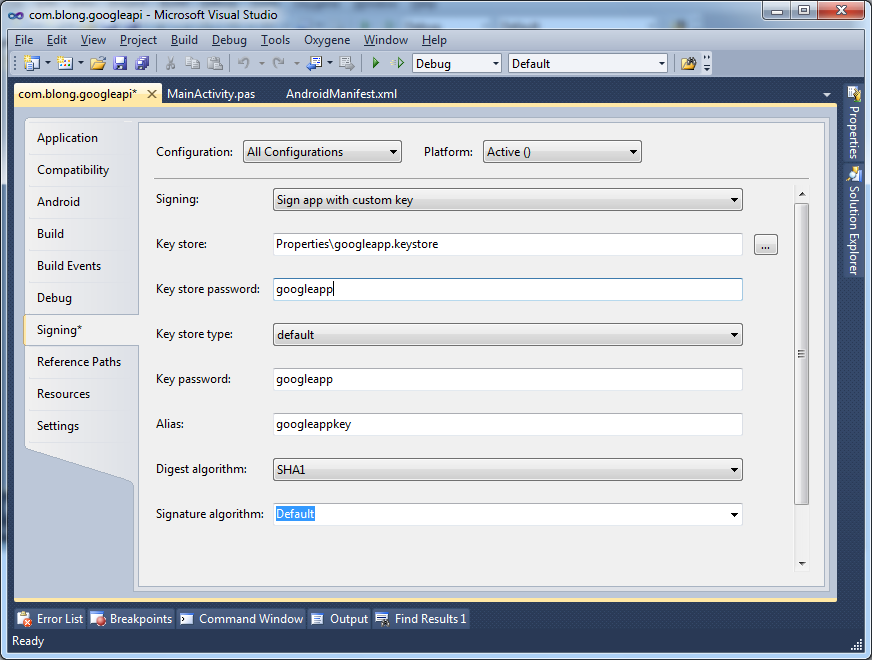
You'll perhaps notice that there is an additional option available on the Signing
page over and above what was passed on the keytool command-line: Digest algorithm.
Additionally, if you are using the RTM initial release of Oxygene for Java, or a
trial download, you may not even see this option available to you - that's because
it has been added in later builds that should be available to you if you've purchased
Oxygene for Java, or will alternatively be available in the next formal release.
What's this all about then? Well, when a key is used to sign an Android package, jarsigner uses a digest algorithm when digesting the unsigned entries of the package. If unspecified, JDK 6's jarsigner will default to using SHA1, whereas JDK 7's jarsigner defaults to using SHA-256. It would appear from what I've seen so far that Android really only recognises an SHA1 digest algorithm so it is important to be able to specify this, in case JDK 7 is installed. of course if you're using JDK 6 there's little worry about.
Note: you may observe above and below that there have been various
changes between JDK 6 and JDK 7 that have the potential to upset the Android development
process (and there are others that are outside this article's remit). Fortunately,
as these have been identified the issues have been reported and Oxygene for Java
has been updated to protect against the installed JDK version.
If you are using the RTM release of Oxygene for Java or the trial version and happen
to have JDK 7 installed, then you should read the signing footnote
that explains how to overcome the problems introduced by JDK 7.
At this point you could make use of the MapView control and successfully
build and deploy an app to a device. However the MapView will not render
a map until this step is completed. The MapView control requires a
Google Map API key that has been logged against your Google account in order to
operate correctly so here we'll see what's involved in getting one.
The information we require is the MD5 fingerprint of the certificate in your keystore. We can use keytool again to get this information:
C:\Oxygene\Android\com.blong.googleapi>keytool -v -list -alias googleappkey -keystore "Properties\googleapp.keystore" -storepass googleapp
Alias name: googleappkey
Creation date: 16-Jan-2012
Entry type: PrivateKeyEntry
Certificate chain length: 1
Certificate[1]:
Owner: CN=Acme Ltd., O=Acme, C=UK
Issuer: CN=Acme Ltd., O=Acme, C=UK
Serial number: 4f6ea8e0
Valid from: Mon Jan 16 21:06:47 GMT 2012 until: Fri Jun 03 22:06:47 BST 2039
Certificate fingerprints:
         MD5:  96:6D:83:D9:57:EA:27:D8:A3:28:2F:D8:08:F4:1F:EB
         SHA1: 0F:08:FB:6D:86:59:60:8B:3C:F1:56:F2:50:F9:C0:F2:02:2A:D4:40
         SHA256: 11:3B:33:05:42:3F:A0:C1:59:28:28:FD:A7:F9:1D:C4:C4:1F:6E:37:1F:F3:5A:C7:99:59:AA:37:DE:0D:44:72
         Signature algorithm name: SHA1withDSA
         Version: 3

Extensions:

#1: ObjectId: 2.5.29.14 Criticality=false
SubjectKeyIdentifier [
KeyIdentifier [
0000: 97 75 66 82 37 CB 0F 82   64 0F 72 A7 B2 BB 22 24  .uf.7...d.r..."$
0010: 4D 72 06 B6                                        Mr..
]
]
Note: in the command above the -v switch is used to
get verbose information displayed. Without this switch keytool will simply display
a single fingerprint. However, whilst with the JDK 6 version of keytool this defaults
to displaying the MD5 fingerprint, which is what we want, with JDK 7 this has changed
to defaulting to show the SHA1 fingerprint. To cover all bases, just use the -v
switch and take the MD5 fingerprint from the list of certificate fingerprints shown.
Having got the MD5 fingerprint of your certificate you then need to visit the Android Maps API Key Signup page. There you can agree to Google's Maps API terms and conditions, plug in your MD5 fingerprint and be presented with your Map API key. For the key that I created with the command-line above I am given an Android maps API key of:
0OUa1B6eBarw7xYPoFo8dYfMnSbS3gXuBOTpdOg
This value needs to be given to a MapView control, either in the layout file it is
defined in with the android:apiKey attribute, or you can pass it to the
MapView constructor if creating the MapView control in code.
Now at last.... at long, long, last we can use the MapView control!
Let's add a new activity to the template Android project to show the Google map.
Right-click on the project node in the Solution Explorer and choose Add,
New Item..., choose Activity from the list, call the source
file GoogleMapActivity.pas and press Add.
Let's set up a simple map UI in the layout file
res\layout\googlemapactivity.xml:
Notice the use of our key-specific Map API key in the MapView's android:apiKey
attribute.
On the code side, in GoogleMapActivity.pas, we should change our activity's
ancestor class from the default Activity class to MapActivity,
which means we also need to add com.google.android.maps to the uses
clause. MapActivity adds in some lifecycle management support and deals
with setup and teardown of MapView's required services.
Note: the documentation for the MapView, MapActivity,
and their associated classes can be found on the Google APIs Add-On reference page.
MapActivity defines one abstract method we have to override: the protected
isRouteDisplayed() method. If we are using the map
view to display any kind of route then we should return true, otherwise
we return false. This method is just used by Google to collate statistical
information (for accounting purposes) on the usage of the map control.
Another method we are typically expected to override is isLocationDisplayed(), however this is an abstract
method so the choice is really ours. This method needs a Boolean returned
indicating if we are displaying the user's current location as ascertained by any
kind of sensor, such as a GPS device.
So the most basic MapView activity template looks like this:
Before we can test the app and see the results of our work there are still a couple of things left to do. Not least of which is the small matter of ensuring the new map activity can be invoked - currently the application's main activity just displays numbers when you click the button.
To make the main activity work with the map activity do the following:
Count variableButtonOnClick to say:
Then to tidy things up, in res\values\strings.xml, remove the definition
of the string my_button_text_2 then update the app_name
string and add a new string definition as follows:
And finally we can use these strings in the Android manifest by changing the new
automatically added GoogleMapActivity activity declaration line in Properties\AndroidManifest.xml
from this:
to this:
And now we're ready to build!
Building the app, deploying it to a device or suitable AVD (emulator) and pressing the button on the main activity now gives us a Google map!
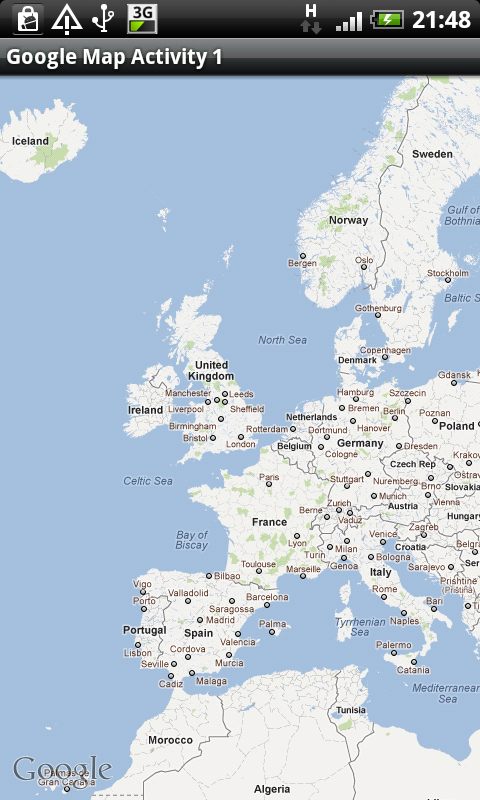
I'll grant you it's a plain map that can only be scrolled around by dragging a finger, and zoomed in and out with pinch movements, but nevertheless it's a Google map app.
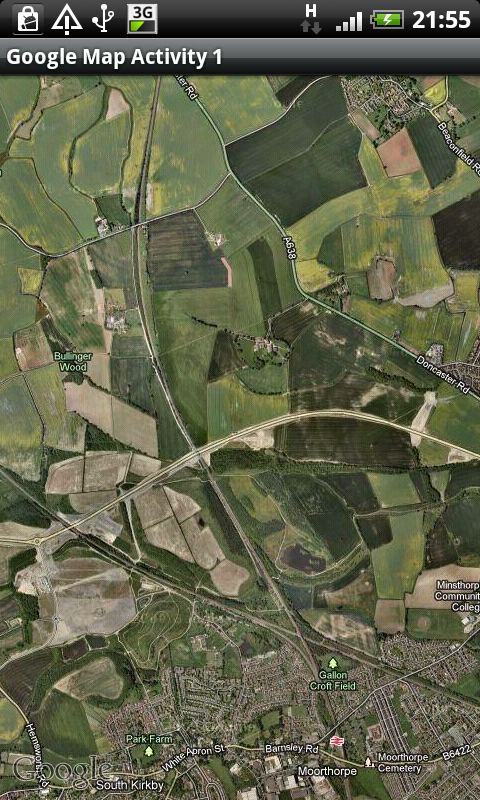
Let's make it a little more interesting by adding the familiar Google zoom controls,
setting an initial zoom level and switching to satellite mode. This means changing
the onCreate() method slightly:
The maps documentation explains the MapView setSatellite() and setBuiltInZoomControls() methods, which have
been accessed as the implied write-only properties Satellite and
BuiltInZoomControls. The getController() method (read-only Controller
property) returns a MapController object that can be used to control
the map in various ways, such as zooming, animating, centering etc.
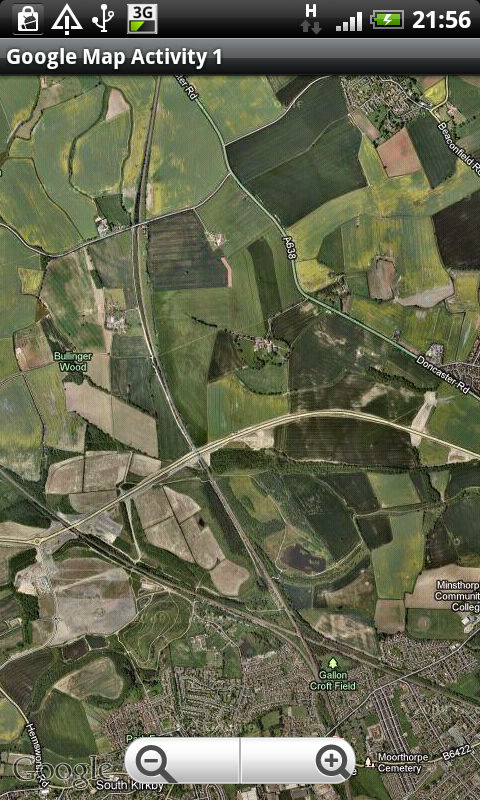
Now the map looks like this. The first image is how it looks by default and the second one shows the zoom controls that appear if you tap the map and disappear after a few seconds of inactivity.
If you wish to add keyboard zooming support for those who happen to have a physical keyboard
on their Android device, this is quite straightforward to do. You simply need to
override the onKeyDown() virtual method:
Note: When you type the word method in the class declaration, as
soon as you add a space a code completion (or IntelliSense) box pops up offering
to enter an override for all overridable methods in the ancestor classes. One annoyance
you will quickly bump into is that whilst it will successfully add in a declaration
and implementation for the method you choose, the argument names will not be as
you expect. The argument names set up for the method will not match those listed
in the Android SDK for that method. Instead they will be listed as arg1,
arg2, arg3 etc. This is a big shame and it quickly becomes
quite tedious to manually update them by referring to the documentation.
The reason for this limitation in Oxygene for Java is that Java libraries do not
retain argument names in the libraries, so Oxygene is unable to extract them from
the class information it has available.
However the Eclipse development tool can get the official argument names
for Java developers, so why the disparity? Well, Eclipse makes use of the Javadoc
documentation comments, which are common throughout the Android source code, and
are emitted into Javadoc files available in the Android SDK directory structure.
Hopefully a future build will start reading these Javadoc files and improve this
situation.
Ok, let's ramp things up a bit and make use of a MapView overlay. An
overlay is as it sounds - some output rendered on top of the map. You can build
custom overlays but there is a pre-built one in the Maps external library called
MyLocationOverlay. This overlay uses the Android
LocationManager to ascertain the device's location and implements the
LocationListener interface to allow you to
respond to the location changing, or the location providers disabling and enabling.
This requires additional permissions to be declared in your manifest file (lines
16 and 17):
MyLocationOverlay can also display a compass that indicates your bearing.
This is achieved using the SensorManager class to follow the on-board
compass (orientation sensor) and implements the SensorListener interface to allow you to also
respond to bearing changes.
There are a couple of guidelines to using this control correctly. If you want to
have the overlay display the current location then you call enableMyLocation().
It's best to do this in an overridden onResume() method and also
call the corresponding disableMyLocation() in onPause().
If you want to see the compass then you call enableCompass() and
disableCompass() in a similar way.
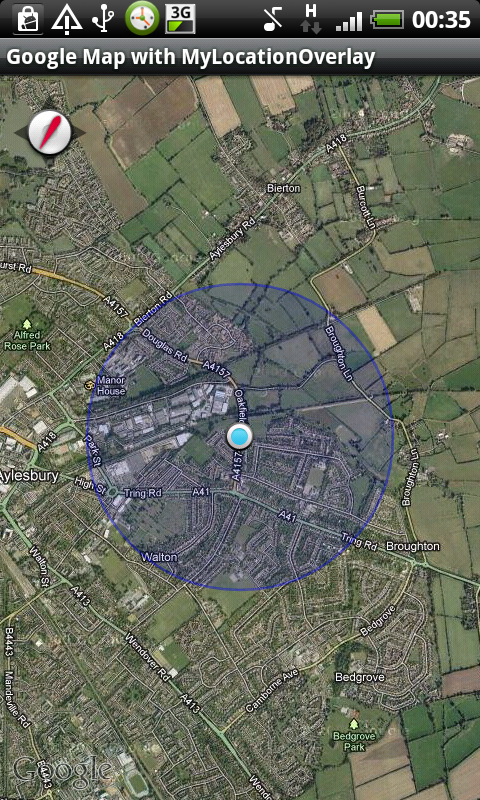
The default behaviour of MyLocationOverlay is to indicate the device location on
the map with a marker in the centre of a blue circle. The circle represents the
entire area the device could be located based on the accuracy of the location
reading. It uses both the network provider and the GPS provider (if they are
enabled) to try and get the best location, favouring the GPS provider as it can
provide a much more accurate result. As additional location readings come in,
because the fix is getting more accurate or because you are moving, the marker
and circle are redrawn appropriately.
However, when the location display is first started the map view is most likely
not going to be displaying the right area for the location circle to be visible.
To overcome this small hurdle we can use the runOnFirstFix() method. This takes a Runnable interface reference and will run the
code in the interface's run method as soon as the MyLocationOverlay
gets a fix on your location. We can use this to execute a call to the map controller
and ask it to animate the map across to the acquired map coordinate (this is easiest
done using inline interface implementation).
Here's the important code from a simple activity using a MyLocationOverlay. Note
that I've created a fresh activity in the sample application for this, but
there's no reason why you can't build on the activity we had from the earlier.
With my GPS disabled the running app looks like this:
Note: the network location provider uses the nearest network cell to give a broad idea of where the device is with a low accuracy (coarse location detection). The GPS provider can produce much more accurate location detection (fine location detection).
Whilst the MyLocationOverlay is now operating it still suffers from
something of a drawback in that if you were to move the device (or indeed just scroll
the map) so the device location is not displayed on the map portion displayed onscreen,
there is no automatic feature to reposition the map so you can see it. However this
is quite straightforward to deal with. You'll recall a little earlier I mentioned
that MyLocationOverlay implements the LocationListener interface; this offers a handy
onLocationChanged() method that we can override
in a simple descendant class to address this shortcoming.
This sample class will do the job.
If you create an instance of this MyGoogleMapLocationOverlay in place
of the original MyLocationOverlay you will be able to drag the map
around to lose the view of the device location and the next location update received
will bring it back onscreen.
Note: the main LocationManager class uses Location objects that work with regular latitude
and longitude coordinates measured in degrees. However the Google Maps library uses
GeoPoint objects, which work with latitude
and longitude values measured in microdegrees, hence the multiplication by 1,000,000
(or 1E6).
Testing the application on a device works fine as the device offers a network location provider as well as a GPS location provider. However if you are testing a Google map app in the emulator (an AVD) then both these services are absent by default. The reasons are obvious - there is no GPS device in the computer that the emulator is hooked up to, and the device isn't connected to the same type of network as a telephone is.
That all being so, you can still control the emulator and tell it to emulate that it has detected its location. You do this using an Android SDK tool called DDMS (the Dalvik Debug Monitor System). Normally DDMS is useful for observing log messages when applications are running outside the debugger.
Note: DDMS uses the same mechanism to hook into the Android sub-system as the Oxygene debugger. Because of this, if DDMS is running then you won't be able to launch the Oxygene debugger. Always remember to close DDMS before embarking on any debugging.
DDMS has a lot of tabs offering options for viewing emulator information or controlling the emulator. The Emulator Control tab has options to control the telephony status, to emulate a telephone call and to either specify a location or pass a route file in to emulate the device being taken on a journey.
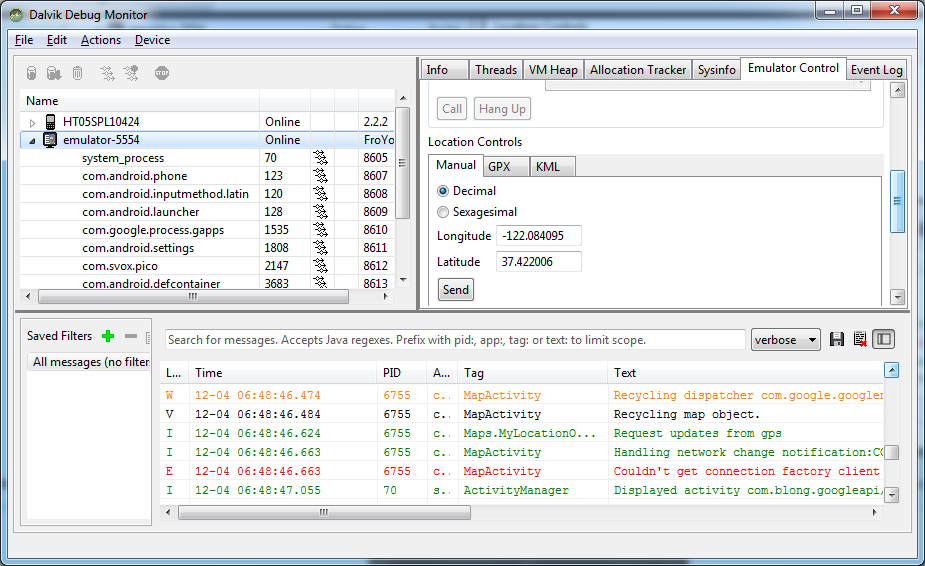
There is a default pair of coordinates set up and as soon as you press the Send button the emulator activates its GPS icon and acts as if it has got a fix on the device location:
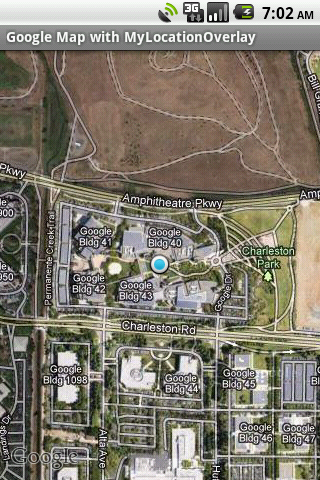
You'll note (especially if you zoom in a little on the map) that the default coordinates are those of the Google headquarters. You can also see no evident blue circle around the location marker, which tells us that the location was either considered to be completely accurate or had no accuracy data associated with it.
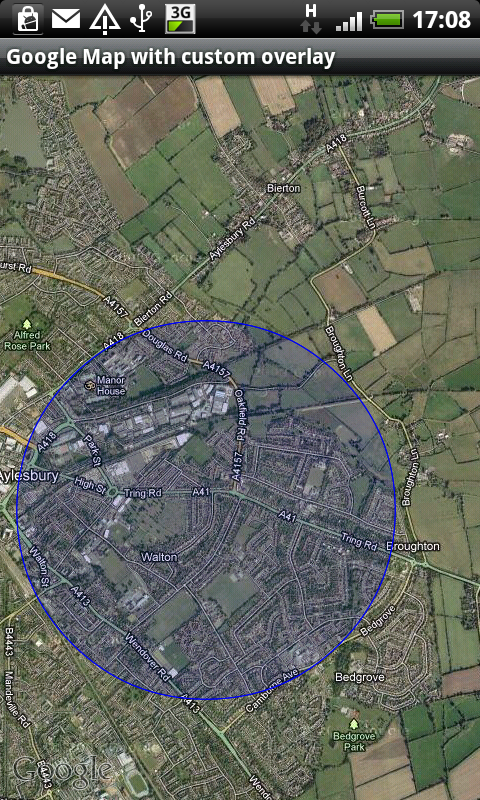
We can also implement our own overlays, drawing what we want on the map. Let's make
a custom overlay that draws a circle similar to the one drawn by MyLocationOverlay.
Also, to make it interesting we'll have it draw the circle centred around our current
detected location and have a radius governed by the current location's accuracy.
Normally when looking at this kind of goal we'd involve the LocationManager class and check for availability
of network or GPS location providers, set up the LocationListener interface and add code to
an override of the onLocationChanged() method, all of which is
discussed in the Obtaining User Location section of the Android SDK Dev Guide. To keep things simple in this
example, however, we'll take advantage of the fact that the MyLocationOverlay
class already does all of that for us. We'll use a MyLocationOverlay
but not have it display the current location or its compass, and instead just use
its own onLocationChanged() method as the place to
set up the custom overlay on the map.
Before worrying about how we'll shoe-horn our custom overlay into the
MyLocationOverlay, here's the custom overlay class.
It has a constructor that stores the centre coordinates, radius and colour, and
a draw() method override to render the circle onto a supplied canvas.
This takes the centre coordinates and turns them into a microdegree-based GeoPoint,
then uses the map's Projection to locate the pixel position of
that point on the map. Next the circle radius in metres is converted into a number
of pixels on the map by first identifying how big it would be at the equator and
then using some trigonometry to take into account the curved earth surface and there
abouts the point actually is. After this a transparent filled circle is drawn, followed
by a solid circle to show the circle's edge clearly.
The activity remains pretty much the same as before, although we ignore the compass
and avoid adding the MyLocationOverlay descendant into the map view's
Overlays array. So that just leaves the MyLocationOverlay
that we're using to do the heavy lifting with regard to getting location updates:
The constructor gets hold of an Android LocationManager so that the
onLocationChanged() method can choose to ignore any location updates
coming from the network provider if it's know that the more accurate GPS provider
is active. If we have already created a custom overlay, this is located in the map's
overlay list and then removed so that we can create a new custom overlay with the
newly identified location and add that instead. On the off-chance that the supplied
location has no accuracy information we use a fallback value of ¼ mile, then
the location, the circle radius and our chosen circle colour are passed into the
custom overlay constructor.
That's about all there is to it. With my GPS unit turned off the custom overlay looks like this after on or two location updates from the network provider:
The final type of overlay we'll look at here is an itemised overlay. This is an
overlay that can display a collection of markers (or overlay items) on the map.
The Google maps library provides a base class for an itemised overlay called
ItemizedOverlay, which has some abstract methods we must override.
We'll do much the same as the short map tutorial Hello, MapView from the Android SDK Dev Guide. This involves creating a simple
descendant of ItemizedOverlay that manages the overlay items in an
array list and overrides createItem() and size() accordingly. The overlay items (items
of type OverlayItem) are set up to store a title and
a snippet of text along with a location, all passed into the constructor. You'll
see in the code below that we also override onTap() so that when one of the markers on
the map is tapped we display a dialog that uses the title and text snippet.
For a simple itemised overlay that's all that is required: a place to store the overlay items. Supporting user interaction is entirely optional.
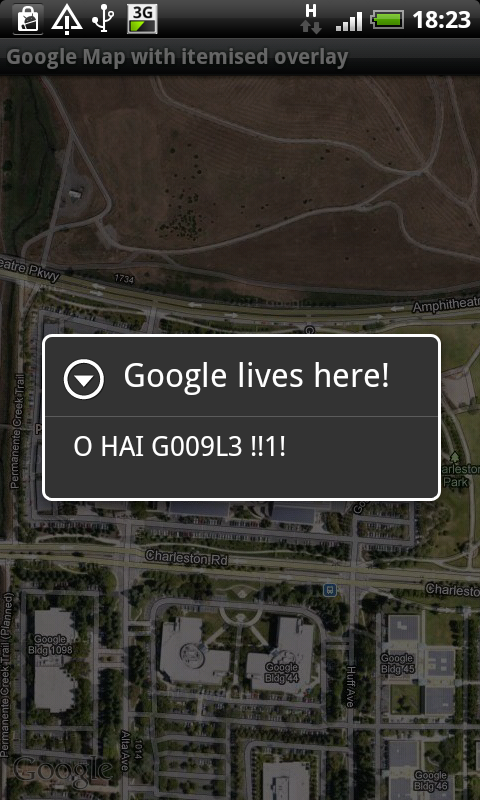
The activity that uses the itemised overlay sets up a default marker from a drawable resource in the project. A single overlay item is created that is given a coordinate, along with a title and some text. This overlay item is then added to the itemised overlay, which is added to the map view and the map view is then told to bring the location of the overlay item into view. The key bits of code are here:
Running up the application we now see this:
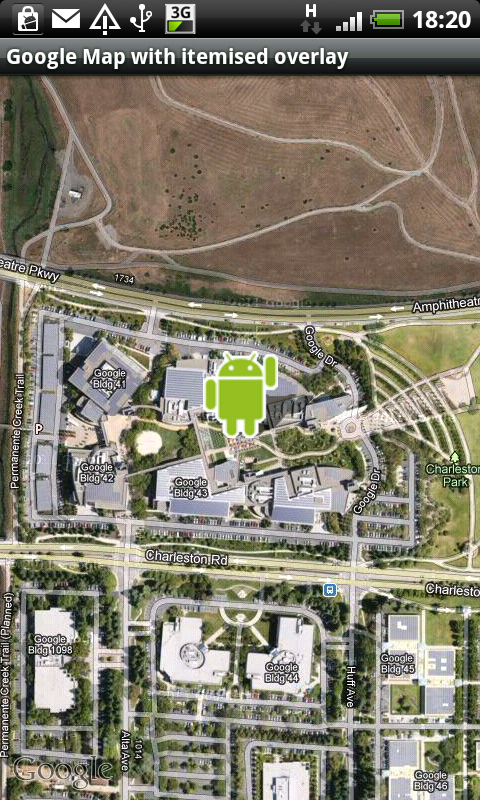
As you might expect, tapping the marker on the map yields a dialog:
If you are using the RTM release of Oxygene for Java, or a trial version, and are running on JDK 7 then you might conclude that it is not possible to custom-sign your Android application. This is because JDK 7's jarsigner defaults to using an SHA-256 digest algorithm where in fact the digest algorithm we require is SHA1. The Oxygene for Java RTM release doesn't have an option for choosing a digest algorithm. However this needn't be a terminal issue.
You have two options here. One is to simply uninstall JDK 7 and Java 7 and then install JDK 6 from the list of available JDK versions.
The other option is to build your applications using a batch file like
the one below. This allows you to compile your project from the command-line using
MSBuild, which will invoke the Oxygene command-line compiler. The commands
specify that Oxygene should not Java-sign the Android package.
The compilation is then followed by calls to jarsigner and zipalign to complete the build
process, passing the appropriate parameters along. Finally the application is uninstalled from the attached device
(assuming there is an attached device and a previous version of the app was
installed) and the new version is then installed onto the device. If using the
emulator substitute the -d option with -e instead.
Note: the batch file assumes that both the JDK bin directory (e.g.
C:\Program Files\Java\jdk1.7.0_02\bin) and the Android SDK tools directory
(e.g. C:\Android\android-sdk-windows\tools) are on the Windows PATH.
The PACKAGE variable should be given a value matching your Android
package name. This is basically your project name all in lower case, and can be
found as the package attribute of the manifest element
in your project's Android manifest file, or alternatively as the Archive name
value on the Application page of the project options. Additionally you should set
up all the details relating to your keystore in the available variables.
This article has looked in some detail at how you set about using Google's
MapView control in an Android application as built with Oxygene for Java.
It's by no means a simple process and various links and information in regular
Android Java coverage have got out of date, hampering the process of working out
what needs to be done. And then Java 7 came along and made some of the aspects
even more prone to going wrong. Hopefully the attention to detail in this
coverage is sufficient to help clear the muddied waters on the subject and allow
Oxygene for Java developers to readily add mapping capabilities into their
Android applications.
If you wish to make any comments on this article, your best options are to comment on the blog post that announced it, use the Contact Me form or email me at .
Brian Long has spent the last 1.6 decades as a trainer, trouble-shooter and mentor focusing on the Delphi, Oxygene, C# and C++ languages, and the Win32, .NET and Mono platforms, recently adding iOS and Android onto the list. In his spare time, when not exploring the Chiltern Hills on his mountain-bike or pounding the pavement in his running shoes, Brian has been re-discovering and re-enjoying the idiosyncrasies and peccadilloes of Unix-based operating systems. Besides writing a Pascal problem-solving book in the mid-90s he has contributed chapters to several books, written countless magazine articles, spoken at many international developer conferences and acted as occasional Technical Editor for Sybex. Brian has a number of online articles that can be found at http://blong.com and a blog at http://blog.blong.com.
© 2012 Brian Long Consulting and Training Services Ltd. All Rights Reserved.
Go back to the top of this page
Go back to start of this article